Showing posts with label How to do. Show all posts

Friday, August 30, 2013

How to Create a Folder in Google Drive

How to Create a Folder in Google Drive:
Google drive is file storing, accessing and synchronizing service provide by Google, in Google drive you can store your files and you can access files from anywhere in the world
Google drive provides 15GB of free storage space
Google Drive allows you to upload and store your files in the cloud

This article will help you to create a folder in Google Drive

Way 1: On Google Drive Website
Step1: Go to www.drive.google.com and Login to your drive
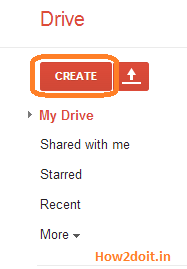
Step2: Click on Create button 
Step3: Select a folder option from drop down menu
Step4: Enter a folder name 
Click on Create
Your folder is created and it is available under my drive
If you installed Google drive in your system automatically the folder is sync to Google drive folder
Way 2: On Windows
If you create any folder in your local Google drive automatically it will sync with web Google drive
Step1: Open you're Google Drive, Create New Folder (Right click ->New->Folder)
Step2: Provide your folder name
Your folder is created, now login to your Google drive check your folder automatically this folder is sync with your web Google drive
  Enjoy :)
Thank you for visiting how2doit.in, if you find any error in my post, please let me now in the comments  


Read more ...

Thursday, August 29, 2013

How to Create a Folder in your PC

How to Create a Folder in your PC:
This article will help you to create your own folders in your PC
Way 1:
Open the path where you want to create a folder, here I am creating a new folder on my desktop

Right click on desktop, go to New->Folder
A folder will be created as shown below
Rename the folder with any name 
And click on enter, your folder is created with a given name
 Way 2: you can also create a folder using command prompt
Below steps will help you to create a new folder in your system using command prompt
Step 1: Open your command prompt (Go start-> type cmd ->click on enter)
Step 2: By using MKDIR (or) MD commands your can create new folder in your system
Syntax:
C :\> makdir [Path Name to create a folder]\[folder name]
Ex : Here I am creating a folder(folder name : how2doit)  in my desktop 
Click on enter 
Go to your desktop check for how2doit folder
Syntax 2: Creating a folder using MD command
C :\> md [Path Name to create a folder]\[folder name
Go to your desktop check for how2doit1 folder
Note : By using WAY1 we can't create a folders with below names
Con
Prn
Nul
Aux
Com1
Com2
Com3
Com4
Com5
Com6
Com7
Com8
Com9
Lpt1
Lpt2
Lpt3
Lpt4
Lpt5
Lpt6
Lpt7
Lpt8
Lpt9
If you try to create a folder with above names using WAY 1 you will get an error message like "The specified device name is invalid"

We can create folder with above name using command prompts
Note: we can't create and delete folder with above names directly by using command prompt only we can create a folder with above names 
Enjoy :)
Thank you for visiting how2doit.in, if you find any error in my post, please let me now in the comments

Read more ...

Thursday, August 22, 2013

How to Change Directory in Command Prompt

How to Change Directory in Command Prompt(cmd):
This tutorial will help you to change directories in command prompt and to see list of directories and files available in current directory

Step 1: Open Command Prompt (Go to Start -> type cmd in search box)
Step 2: CD (Change Directory) command is used to switch directories in Command Prompt
Syntax: CD Directory name
Click on enter, command prompt will change to new directory
Step 3: To go back to Previous directory type CD..
Click on enter
Step 4: To see List of directories available in current directory use dir Command
Click on enter
Step 5: to close command prompt use the exit command

Enjoy :)
Thank you for visiting how2doit.in, if you find any error in my post, please let me now in the comments 


Read more ...

Monday, August 19, 2013

How to Enable Right Side Chat in Gmail

How to Enable Right Side Chat in Gmail:
In Gmail by default chat box is shown below your labels in the left sidebar as shown below
                     
If you want move your chat box to the Right Side follow below steps
This tutorial will help you to Enable Right Side chat in Gmail
Step 1: Log in to Gmail account
                                          
Step 2: Click on cogwheel drop-down menu and select "Settings"
                             
Step 3:  Select the Labels Tab
                                        
Step 4: Search for "right-side Chat" / scroll down until you see "right side chat" label
                        
Select Enable radio button
                                     
Click on save changes, now Gmail will reload itself and we can see chat box enables on right side as shown below
                            
Enjoy :)
Thank you for visiting how2doit.in, if you find any error in my post, please let me now in the comments  
Read more ...

Thursday, July 18, 2013

How To Make Sweet And Sour Pork

How To Make Sweet And Sour Pork:

Sweet and sour pork is one of the world's favourite food. I hope you enjoy my simple home recipe showing how to make it. Give it a go!


Ingredients:

250g pork diced into 1-1.5cm cubes

Batter:
¼ cup plain flour
¼ cup corn flour
1 egg
2 tbs water
½ tsp salt

Sweet and Sour Sauce:
¼ cup chopped onion
¼ cup mixed chopped red and green capsicum / bell pepper
¼ cup pineapple pieces
2 tbs pineapple juice
2 tbs tomato ketchup
2 tbs rice wine vinegar
2 tbs white sugar
1 tsp corn flour dissolved in the rice wine vinegar

Enjoy!
Read more ...

Blog Archive