Friday, August 30, 2013

How to Add or Upload a Files to Google Drive

How to Add or Upload a Files to Google Drive:
Google drive is file storing, accessing and synchronizing service provide by Google, in Google drive you can store your files and you can access files from anywhere in the world
Google drive provides 15GB of free storage space
Google Drive allows you to upload and store your files in the cloud

It is easy to upload files into Google drive, simply we can add your files into Google drive by dragging  and dropping them into Google drive folder
On Windows:
Install Google drive on windows, click here to know how to install Google drive on windows
New Google drive folder will be created inside home folder by default 
Open your Google drive folder
Drag and drop your files into Google drive folder (or) Copy and paste your files  into Google Drive folder 
On Google Drive website:
We can upload the files in 2 ways
Way 1: Simply drag and drop the files in to Google drive, this feature is available only on latest version of Google Chrome and Firefox  
Way 2:
Step 1: Login to your Google drive
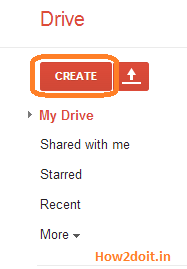
Step 2: Click the upload button from the left column of your Google drive web page
Step 3: Select Files from drop down menu
Step 4: select the files to upload, to upload multiple files at a time press SHIFT or CTRL buttons and select files and click on enter/open
Step 5: your files will be uploaded into Google drive
Your files will be uploaded in to my drive
You can upload up to 10GB
Enjoy :)
Thank you for visiting how2doit.in, if you find any error in my post, please let me now in the comments  


Read more ...

How to Delete a Folder in Google Drive

How to Delete a Folder in Google Drive:
Google drive is file storing, accessing and synchronizing service provide by Google, in Google drive you can store your files and you can access files from anywhere in the world
Google drive provides 15GB of free storage space
Google Drive allows you to upload and store your files in the cloud 

This article will help you to create a folder in Google Drive 
Way 1: On Google Drive Website
Step1: Go to www.drive.google.com and Login to your drive
Step 2: All your folders are available under my drive
Step 3: Select check box before the folder name to delete folder, click on Remove button to delete a folder 
Step 4: You will get a notification as shown below
If you delete a folder in web Google drive automatically that folder will get deleted from your system Google drive
Way 2: On Windows
Step 1: Open Google driver folder
Step 2: Select a folder to delete, right click on folder ->delete
You will get a notification as shown below, Click on Yes
Click on Ok,Move to trash button
Your folder is deleted in your Google drive
If you want to see/to retrieve deleted folders go to trash on drive.google.com
To restore deleted folders, go to trash and select your folders to restore and click on Restore button
To delete your folder forever, go to trash ->select your folder and click on Delete forever
You will get a notification as shown below, Click on Delete forever
Once if you click on delete forever those file will be deleted permanently
Enjoy :)
Thank you for visiting how2doit.in, if you find any error in my post, please let me now in the comments  

Read more ...

How to Create a Folder in Google Drive

How to Create a Folder in Google Drive:
Google drive is file storing, accessing and synchronizing service provide by Google, in Google drive you can store your files and you can access files from anywhere in the world
Google drive provides 15GB of free storage space
Google Drive allows you to upload and store your files in the cloud

This article will help you to create a folder in Google Drive

Way 1: On Google Drive Website
Step1: Go to www.drive.google.com and Login to your drive
Step2: Click on Create button 
Step3: Select a folder option from drop down menu
Step4: Enter a folder name 
Click on Create
Your folder is created and it is available under my drive
If you installed Google drive in your system automatically the folder is sync to Google drive folder
Way 2: On Windows
If you create any folder in your local Google drive automatically it will sync with web Google drive
Step1: Open you're Google Drive, Create New Folder (Right click ->New->Folder)
Step2: Provide your folder name
Your folder is created, now login to your Google drive check your folder automatically this folder is sync with your web Google drive
  Enjoy :)
Thank you for visiting how2doit.in, if you find any error in my post, please let me now in the comments  


Read more ...

Thursday, August 29, 2013

How to Create a Folder in your PC

How to Create a Folder in your PC:
This article will help you to create your own folders in your PC
Way 1:
Open the path where you want to create a folder, here I am creating a new folder on my desktop

Right click on desktop, go to New->Folder
A folder will be created as shown below
Rename the folder with any name 
And click on enter, your folder is created with a given name
 Way 2: you can also create a folder using command prompt
Below steps will help you to create a new folder in your system using command prompt
Step 1: Open your command prompt (Go start-> type cmd ->click on enter)
Step 2: By using MKDIR (or) MD commands your can create new folder in your system
Syntax:
C :\> makdir [Path Name to create a folder]\[folder name]
Ex : Here I am creating a folder(folder name : how2doit)  in my desktop 
Click on enter 
Go to your desktop check for how2doit folder
Syntax 2: Creating a folder using MD command
C :\> md [Path Name to create a folder]\[folder name
Go to your desktop check for how2doit1 folder
Note : By using WAY1 we can't create a folders with below names
Con
Prn
Nul
Aux
Com1
Com2
Com3
Com4
Com5
Com6
Com7
Com8
Com9
Lpt1
Lpt2
Lpt3
Lpt4
Lpt5
Lpt6
Lpt7
Lpt8
Lpt9
If you try to create a folder with above names using WAY 1 you will get an error message like "The specified device name is invalid"

We can create folder with above name using command prompts
Note: we can't create and delete folder with above names directly by using command prompt only we can create a folder with above names 
Enjoy :)
Thank you for visiting how2doit.in, if you find any error in my post, please let me now in the comments

Read more ...

Wednesday, August 28, 2013

How to delete con/auf/prn/nul Folders

How to delete con/auf/prn/nul Folders:
In windows it is not possible to delete a folder having the following names
Con
Prn
Nul
Aux
Com1
Com2
Com3
Com4
Com5
Com6
Com7
Com8
Com9
Lpt1
Lpt2
Lpt3
Lpt4
Lpt5
Lpt6
Lpt7
Lpt8
Lpt9

If you try to delete a folder with above names you will get a message like "Item Not Found"
Solution for the above problem is deleting a folders using command prompt
Step 1: Open your command prompt (Go start-> type cmd ->click on enter)
Step 2: By using RMDIR (or) RD commands your can delete folder in your computer
Syntax 1: Deleting a con/auf/com1.etc  folder using RMDIR command
C:/>rmdir \\.\[Path Name to create a folder]\[folder name]
Syntax 2: Deleting a con/auf/com1.etc folder using RD command
C:/>rd \\.\[Path Name to create a folder]\[folder name]
Note: By using command prompt we can delete any folder
Enjoy :)
Thank you for visiting how2doit.in, if you find any error in my post, please let me now in the comments


Read more ...

How to create a con,auf,prn,nul Folders Using Command Prompt

How to create a con/auf/prn/nul Folders Using Command Prompt:
In windows it is not possible to create a folder with the following names
Con
Prn
Nul
Aux
Com1
Com2
Com3
Com4
Com5
Com6
Com7
Com8
Com9
Lpt1
Lpt2
Lpt3
Lpt4
Lpt5
Lpt6
Lpt7
Lpt8
Lpt9

If you try to create a folder with above names you will get an error message like "The specified device name is invalid"

Reason: Above all are the reserved keywords used by DOS, if you try to create a folder with above names there will be an ambiguity problem
Solution for the above problem is creating a folders using command prompt
Step 1: Open your command prompt (Go start-> type cmd ->click on enter)
Step 2: By using MKDIR (or) MD commands your can create new folder in your computer
Syntax 1: Creating a con/auf/com1.etc  folder using MKDIR command
C:/>mkdir \\.\[Path Name to create a folder]\[folder name]
Go to your desktop check for con folder

Syntax 2: Creating a con/auf/com1.etc folder using MD command
C:/>md \\.\[Path Name to create a folder]\[folder name]
Go to your desktop check for prn folder
Note: By using command prompt we can create a folder with any name
Enjoy :)
Thank you for visiting how2doit.in, if you find any error in my post, please let me now in the comments 
Read more ...

Blog Archive